Connect ChatGPT
Connect ChatGPT to A-Line.cloud over MCP.
ChatGPT reaches A-Line.cloud as a plugin. Install it from the ChatGPT plugin directory.
Connect
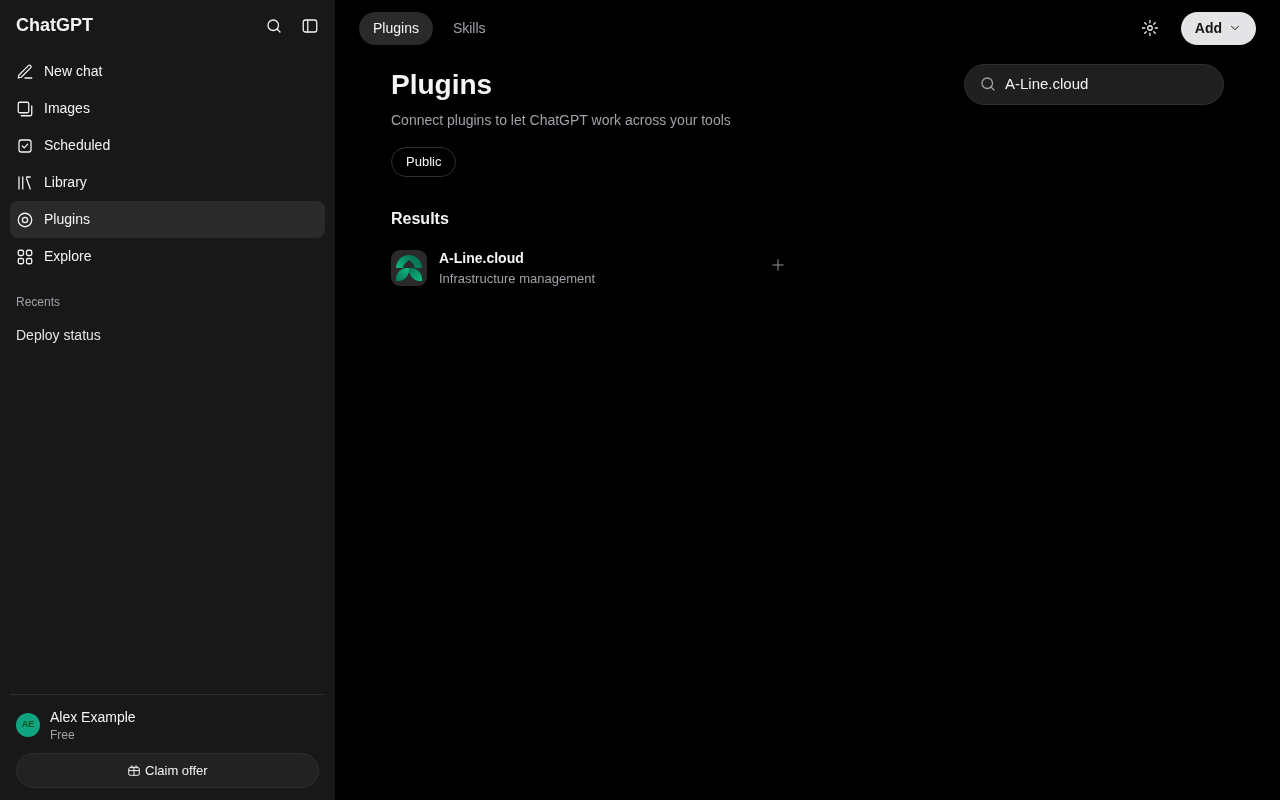
Open ChatGPT Plugins (chatgpt.com/plugins), search for a-line in the plugin directory and select the plus button next to it.
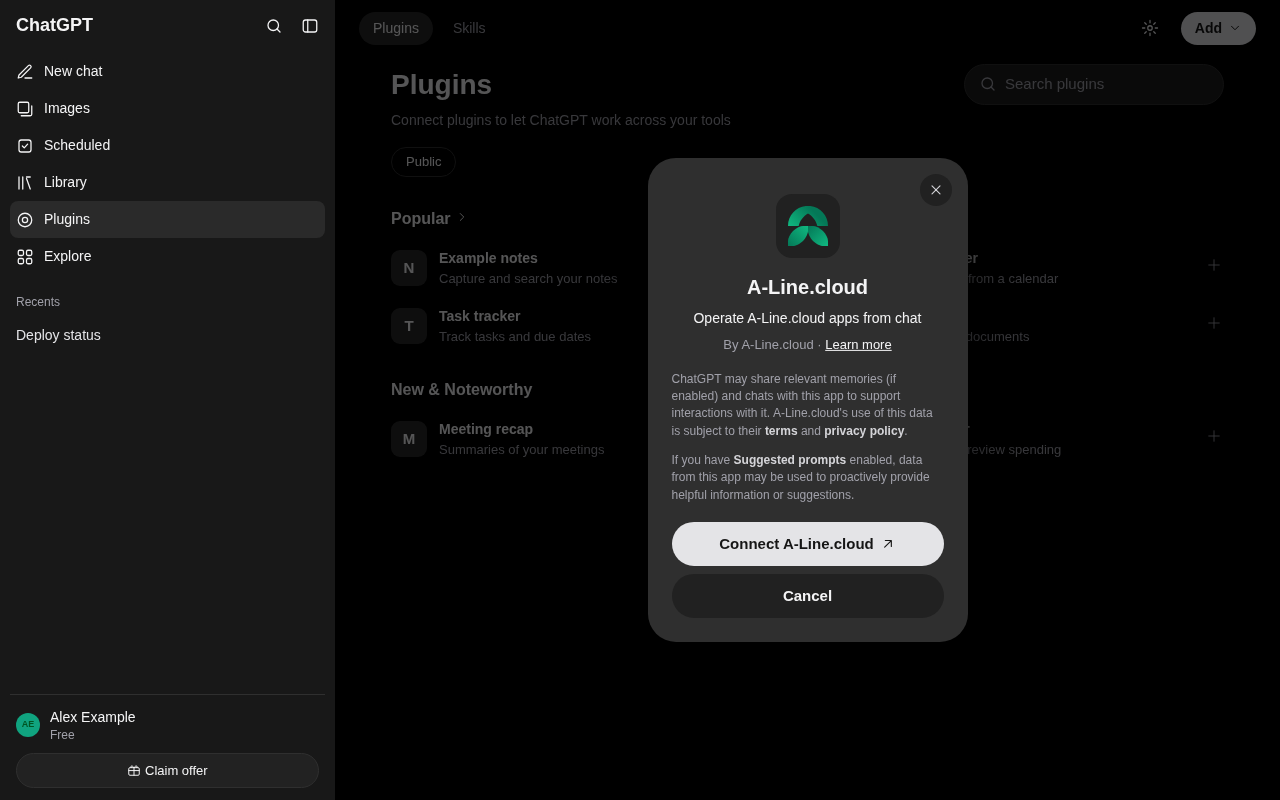
In the popup, select Connect a-line. Your browser opens to sign in and choose what the client may do.
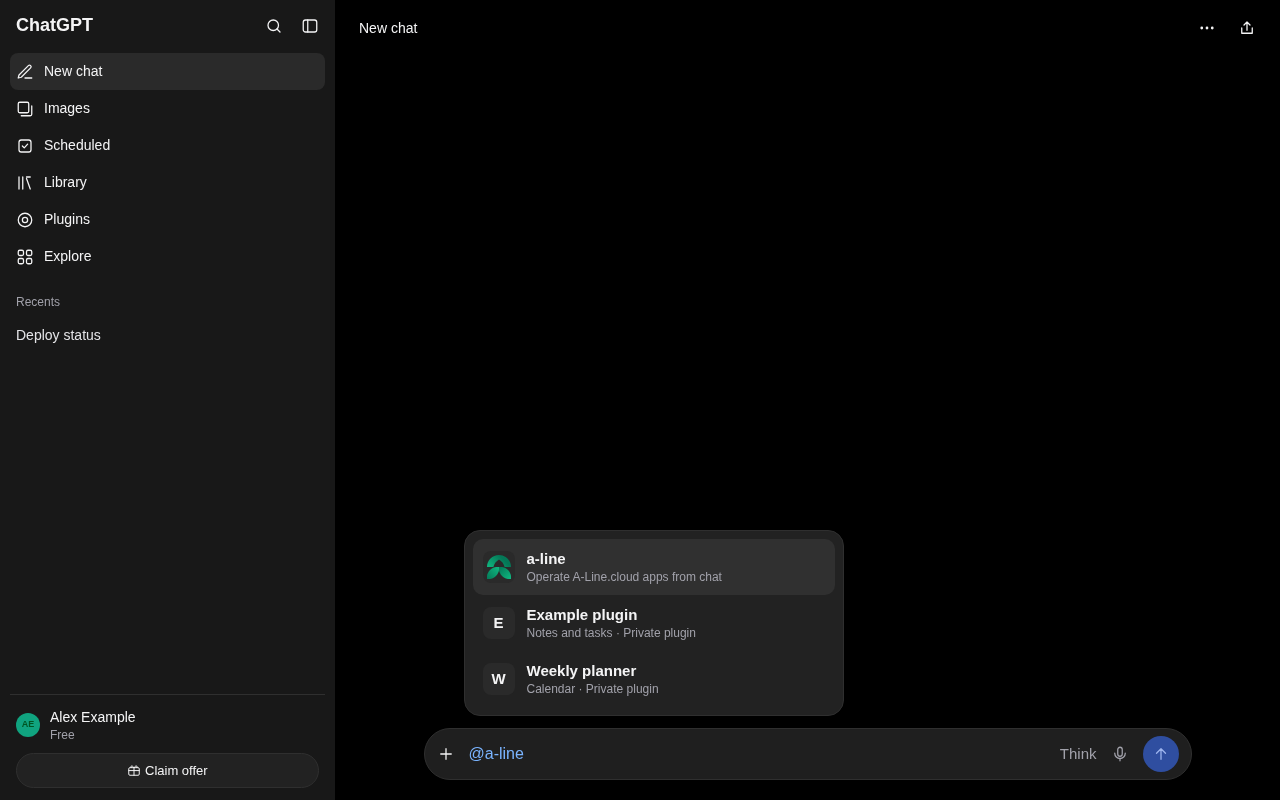
Start a new conversation, type @ and choose a-line.
Sign in
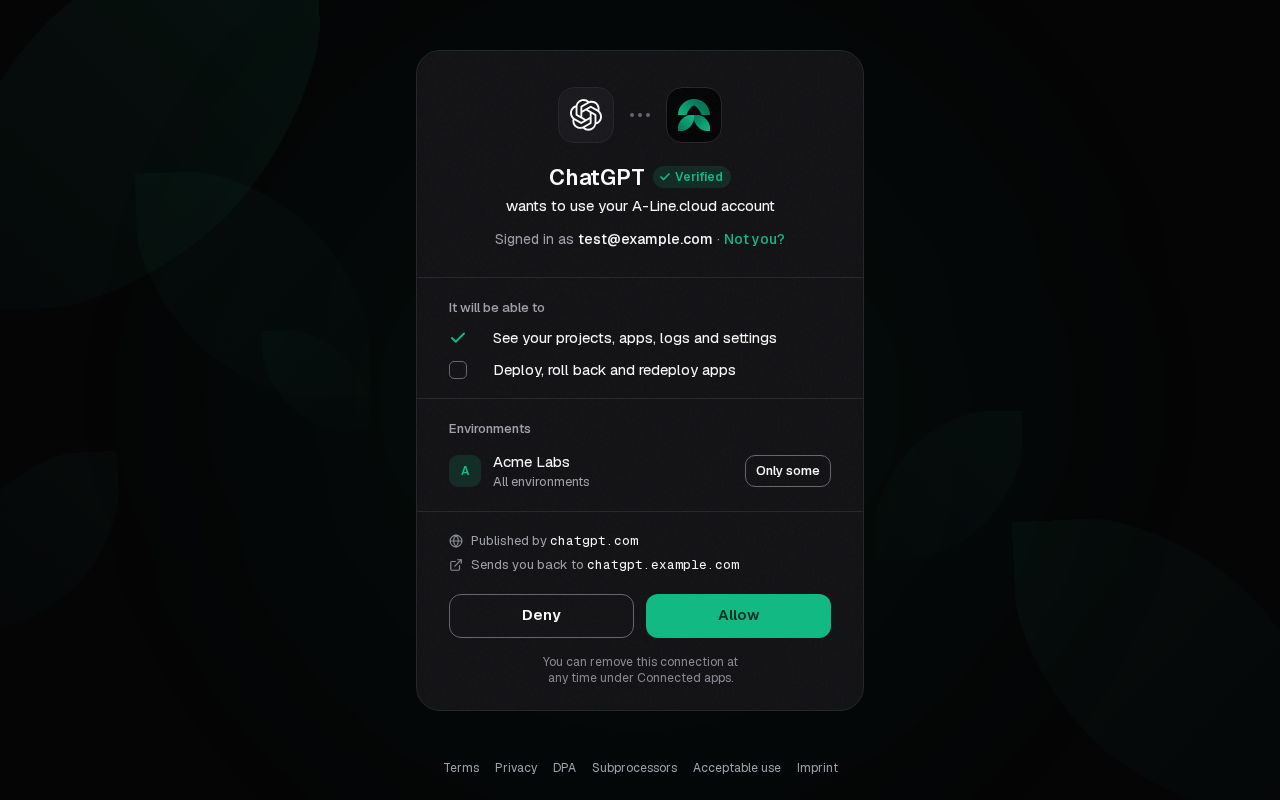
In the popup ChatGPT shows, select Connect A-Line.cloud. ChatGPT opens A-Line.cloud in your browser. The sign-in screen shows ChatGPT with a verified badge. Sign in, check the access it asks for and the organizations, then select Allow. Reading is part of every connection; deploys, secrets and domains are separate choices you can leave off.
Try it
Start with questions that only read:
- "Which A-Line.cloud account and organizations am I connected to?"
- "Give me an overview of what is running in my organization."
- "Why did the last deploy of web fail? Show its build log."
- "Search the A-Line.cloud docs for how to add a custom domain."
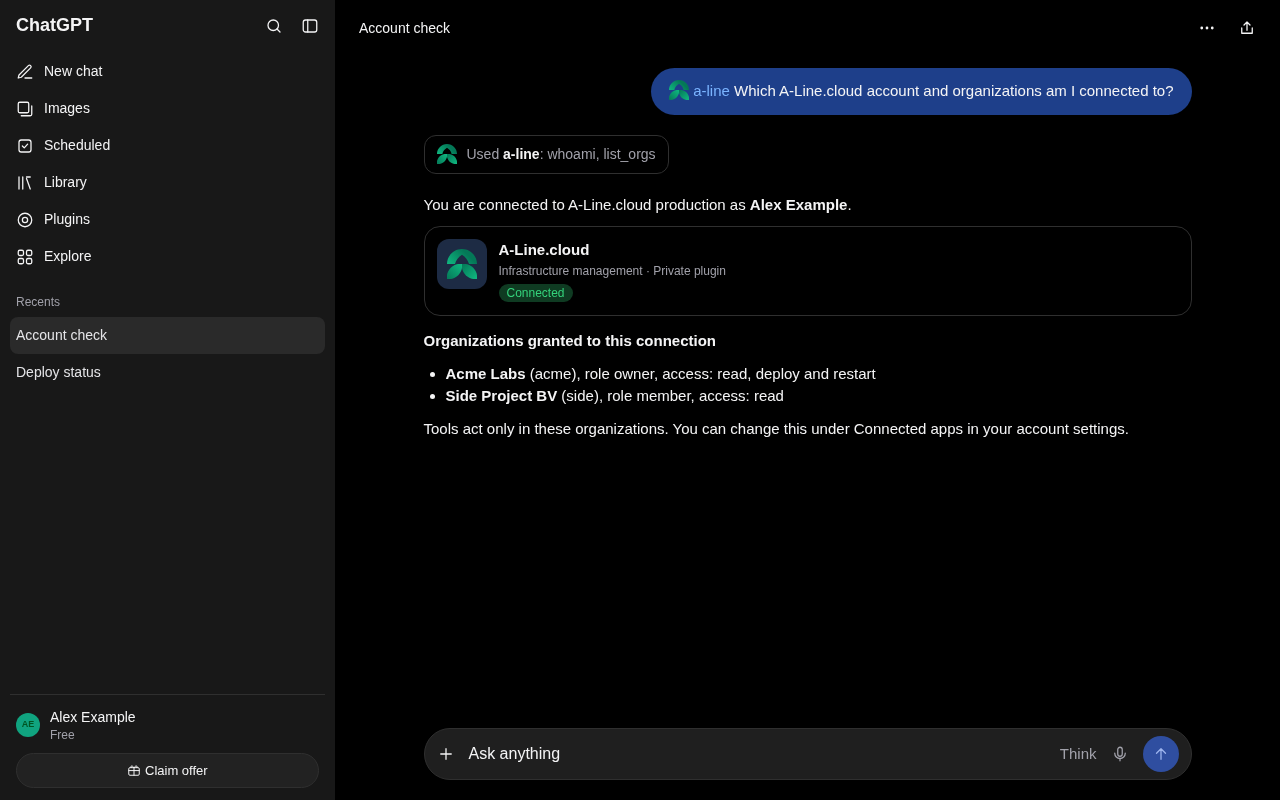
Changes work when you granted them at sign-in. ChatGPT may ask you to confirm before it runs a tool that changes something:
- "Restart the web app in production."
- "Scale web to 3 replicas."
- "Set the environment variable LOG_LEVEL to debug on web."
A request that needs a permission you did not grant is refused. Grant it by revoking the connection under Connected apps and signing in again.
Revoke
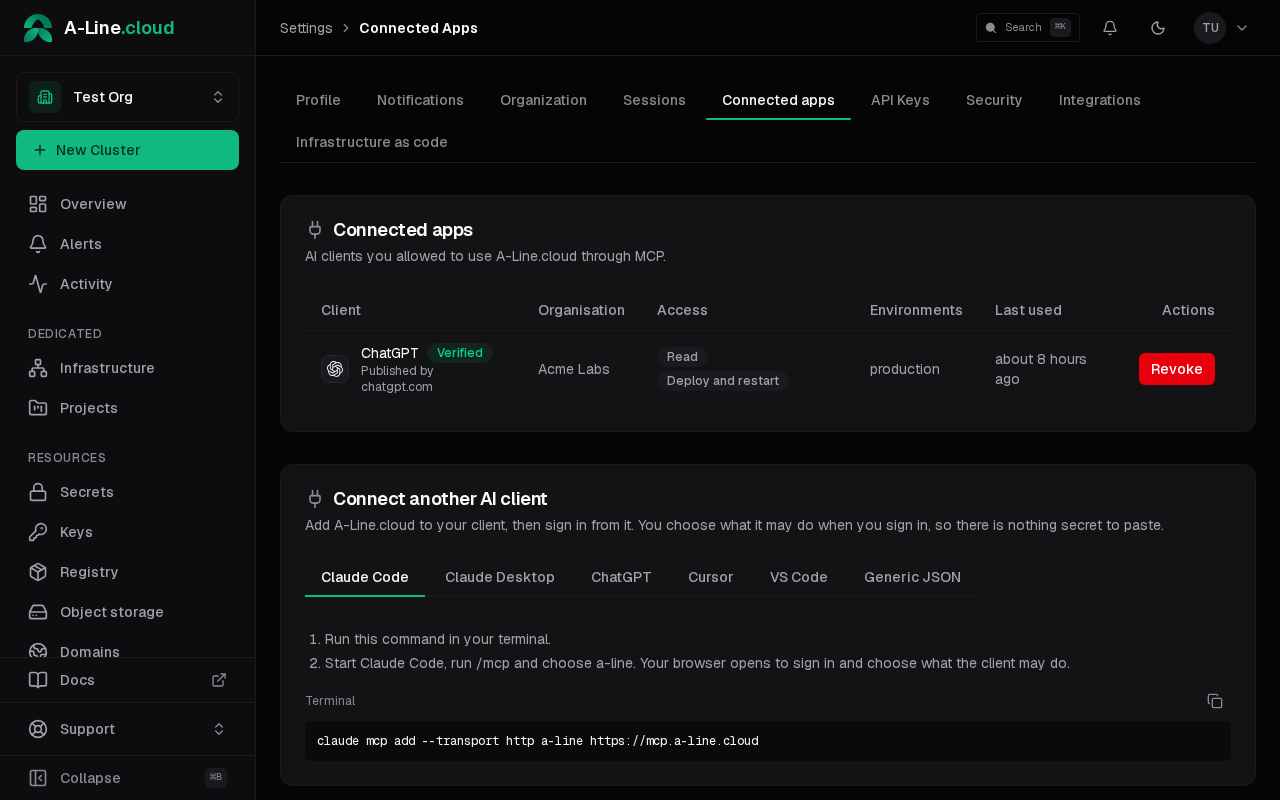
Open Settings and then Connected apps in the console. Each connection lists the client, the organizations, what it may do and when it was last used. Select Revoke on the ChatGPT row to end it; the next tool call asks you to sign in again.
Troubleshooting
Sign-in opens again and again. The browser you sign in with must allow the A-Line.cloud cookies, and you must finish the consent step with Allow. If ChatGPT still loops, revoke the connection under Connected apps and connect once more.
ChatGPT acts in the wrong organization. A connection only reaches the organizations you chose at sign-in. Revoke it and sign in again with the right ones, or pass the organization in your prompt, for example "in organization acme".
A tool is not shown. Tools that change things only appear when you granted that permission. A tool added to A-Line.cloud recently can take a while to appear in a published plugin, because OpenAI reviews tool changes first. Ask ChatGPT to search the A-Line.cloud docs for the tool, or add the server by hand to see the current list at once.
The plugin is missing from the @ picker. Install it first from your personal plugins, then start a new conversation.